

If you’ve read my introductory post, you’ll know that Notion can be as simple or as powerful as you want it to be. But I imagine many school leaders will still feel nervous about trying a new tool. So here is my very gentle introduction: ten minutes, three steps, and you’re up and running.
You don’t need to understand formulas, databases, filters, or templates or anything like that. In fact, you can get real value from Notion before you ever touch anything complicated.
Let’s get started.
Step 1: Create a simple workspace (2 minutes)
Go to www.notion.so and create a free account. Once you’re in, click New page on the left-hand sidebar and give it a title:
School Leadership Workspace or anything else you like!
Inside this page, create three simple subpages:
- Today
- Meetings
- School List
This alone already makes Notion useful.
Step 2: Build three powerful starter tools (5 minutes)
These pages require no skill and no setup. They’re just headings and tick-boxes, but they immediately make the principalship easier.
1. Today (your calm daily dashboard)
Create a page called Today. Add your first heading:
To do this, type in # or ## followed by a space. This is the shortcut for creating headings. Another option is click on the left hand side of the line and select Turn into and pick a Header. There are lots of options so play around. Most importantly though, you should type the heading:
What I need to do today
Next you need to add some simple checkboxes. To add these, simply type the following symbol /
This brings up the list of things you can add to Notion. Start typing in “To-Do” and this will happen
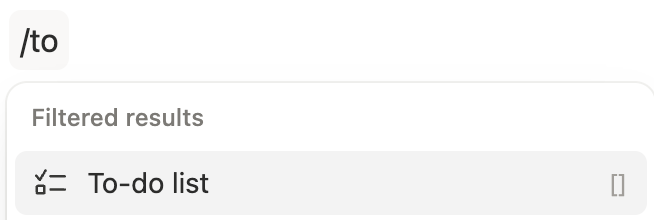
Select the To-do list and type a placeholder and press Enter to create new checkboxes. Of course, you can add your daily to-dos in here.
Next add another heading:
What happened today
Leave a couple of lines underneath this by pressing Enter then move on to the next header:
What I need to follow up tomorrow
In this spot you can move checkbox items here instead of trying to remember them! Or you can set up new ones!
This is your daily anchor. Open it first thing every morning. It’s easy isn’t it? 😃
Let’s move on and create a new page to store all of your meetings.
Create a page called Meetings with this structure of headings.
Date:
Attendees:
Notes:
Actions:
Every time you have a meeting, with a parent, staff member, SNA, pupil support team, Board of Management, or outside agency, create a new entry using this layout.
You now have a chronological log of every meeting you’ve had all year in one place. (If you ever need to look something up months later, you will thank yourself.)
Now let’s make a School List, ie your running job list.
Create a page called:
School List
Add a heading for To Do, one for Waiting On, and one for Done.
Use tick-boxes for everything:
- “Ask caretaker to check radiator”
- “Send substitute claim”
- “Collect enrolment form”
- “Email parent about meeting date”
This replaces post-its, whiteboard scribbles, and that mystery list you swear you wrote somewhere.
That’s it! It’s so simple.
Extra tip: Pin your workspace on your phone
The Notion mobile app is very handy for:
- adding things to your School List during yard duty
- jotting quick notes after a conversation
- updating the absence tracker from anywhere
- checking the caretaker’s tasks
- logging a meeting immediately after it happens
One tap, no rummaging through emails or files. The app is available on Android and Apple phones.
Where to go next
Once you’ve mastered these basics, you might be ready to create your own templates or maybe explore templates built by me specifically for Irish primary schools, such as:
- Principal’s Record of Meetings
- Communications Log
- Caretaker’s Workspace
- School Self-Evaluation Toolkit
Some of these are free, others are included with SchoolPolicy plans. All are built to save time and calm your workload.
If you’ve ever felt that your workday exists across ten apps, three notebooks, and five spreadsheets, Notion gives you one place to bring the pieces together.
And you’ve already started.